Basic features
jxscout is a tool that works in the background, automating many tasks for you. At its core, jxscout saves static assets from your targets to the file system, allowing you to quickly navigate through your target's client-side code and leverage AI editors to help you understand your target better.
jxscout also helps you with many other tasks. This document will guide you through the basic features of jxscout.
Preparing for this guide
Before jumping into the guide, let's start a new project that we will use to test out the basic features of jxscout. This guide also assumes that you already went through the Getting Started guide.
To get started, go to the project switcher in the jxscout CLI (press Shift+P), and create a new project by pressing Shift+N.
Let's use the following settings:
- Project Name -
basic-features - In Scope -
*labs.jxscout.app*
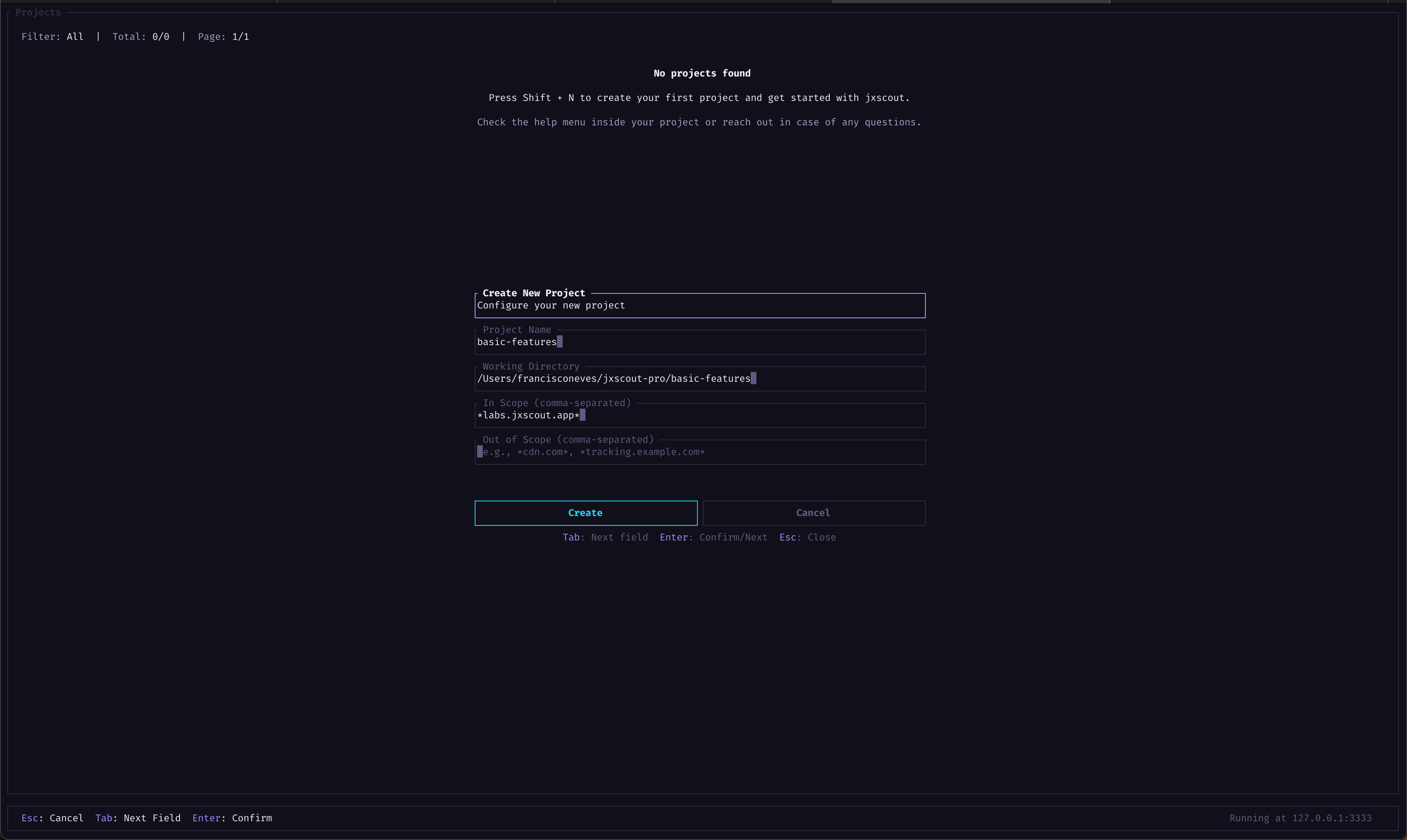
Then open your VSCode (or VSCode fork) in the working directory of your new project—jxscout should prompt you automatically and ask if you want to open the folder.
Scope
The scope setting lets you configure which assets are tracked or ignored by jxscout. You can set both in-scope and out-of-scope URLs.
The scope is matched against full URLs and supports * wildcards.
You can configure scope like *google.com*:
https://google.com- matcheshttps://www.google.com- matcheshttps://google.com.another.domain.com- matches. If you want a more precise domain match, set your scope to*google.com/*instead. This might not be obvious at first, but it also lets you track only specific directories (e.g.*google.com/static*)
Overview
Let's start by going to https://labs.jxscout.app and check what jxscout did for us.
It's recommended to keep your browser's cache turned off while using jxscout, so that assets are not served from it and requests reach jxscout.
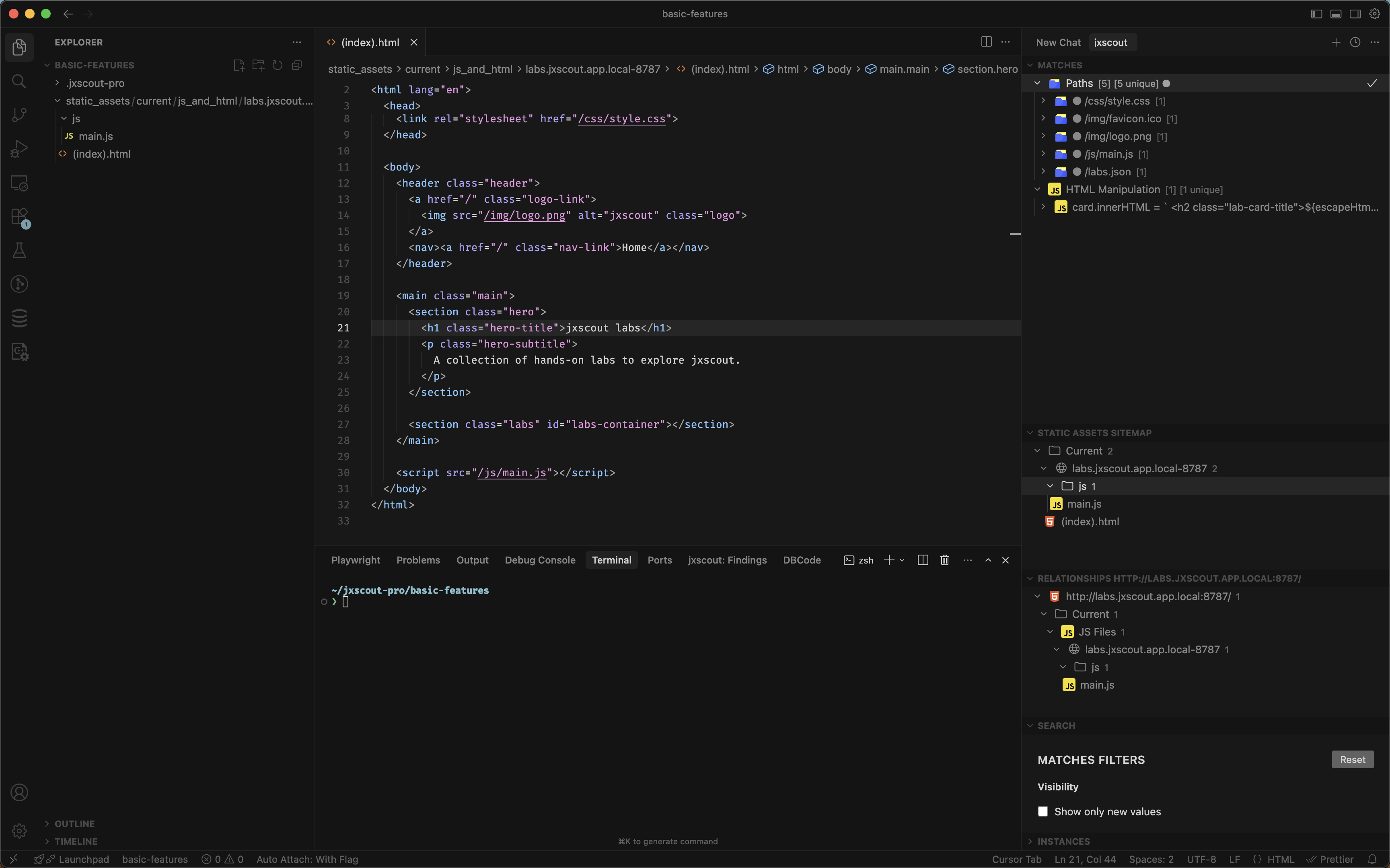
You will notice a few things right away:
- jxscout saved the HTML and JS files of this page under
static_assetsin a convenient file structure that mimics the URL of the assets on your target. - The "Matches" view shows relevant pieces of information extracted by jxscout on the found assets.
- The "Static Assets Sitemap" view shows all the collected static assets.
- The "Relationships" view shows the related assets for the currently focused file on VSCode.
We will deep dive into each of these views later. For now, click on one of the matches and jxscout should jump directly to the place in the code where that match was found.
Beautification
Beautification is a core feature of jxscout. As jxscout saves HTML and JS files, jxscout creates an event (more on events later) to schedule the beautification of that file.
This ensures that all of the files that are downloaded are easy for you to read.
Let's test this out on our first lab https://labs.jxscout.app/labs/minified-code/
This page loads a JS file at https://labs.jxscout.app/labs/minified-code/app.js. If you load this page in your browser, you will notice that all the code is on a single line. In this small example the code might still be readable, but for a large JS file it would be hard to analyze.
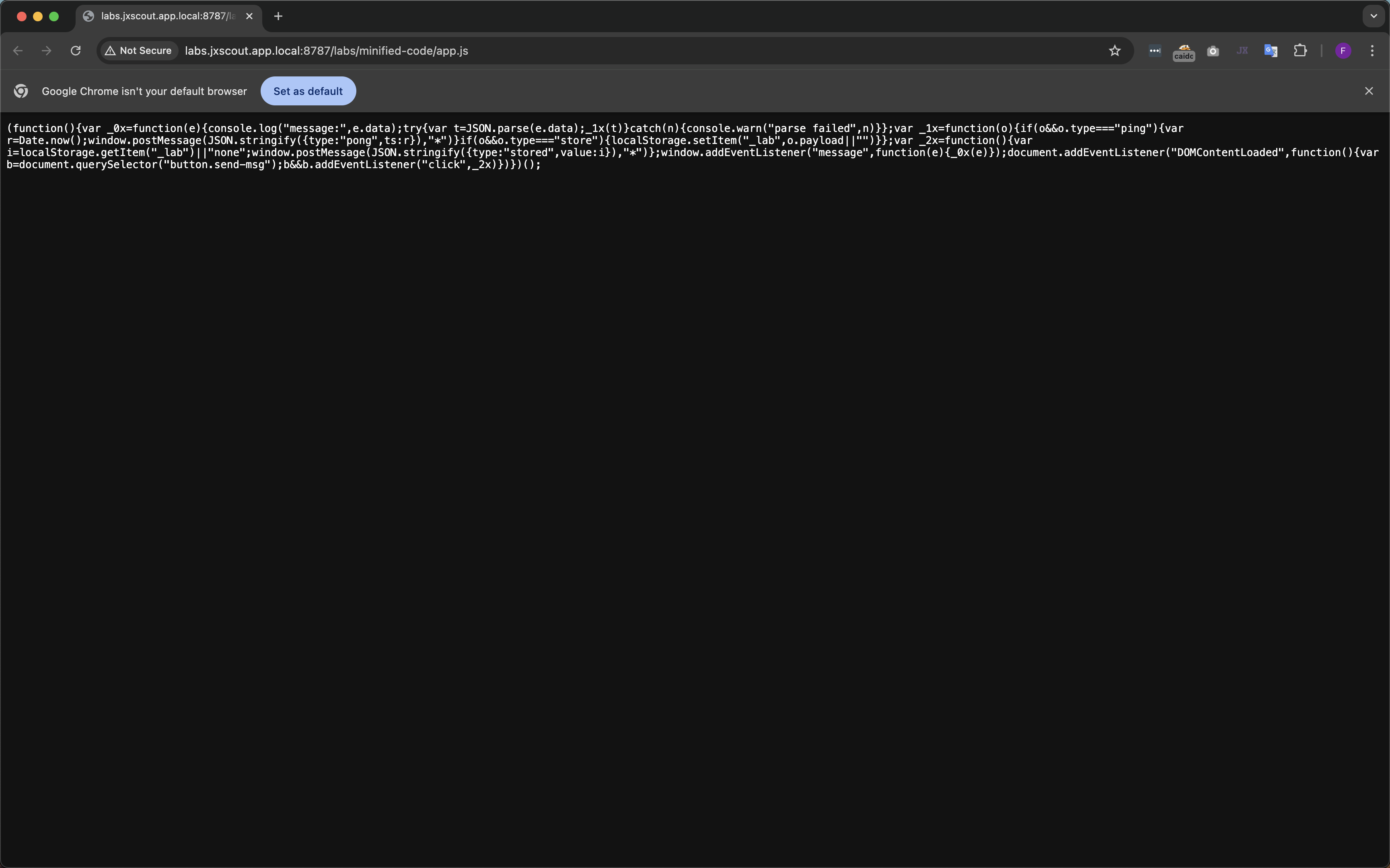
Now let's check the beautified version that jxscout created in our project folder.
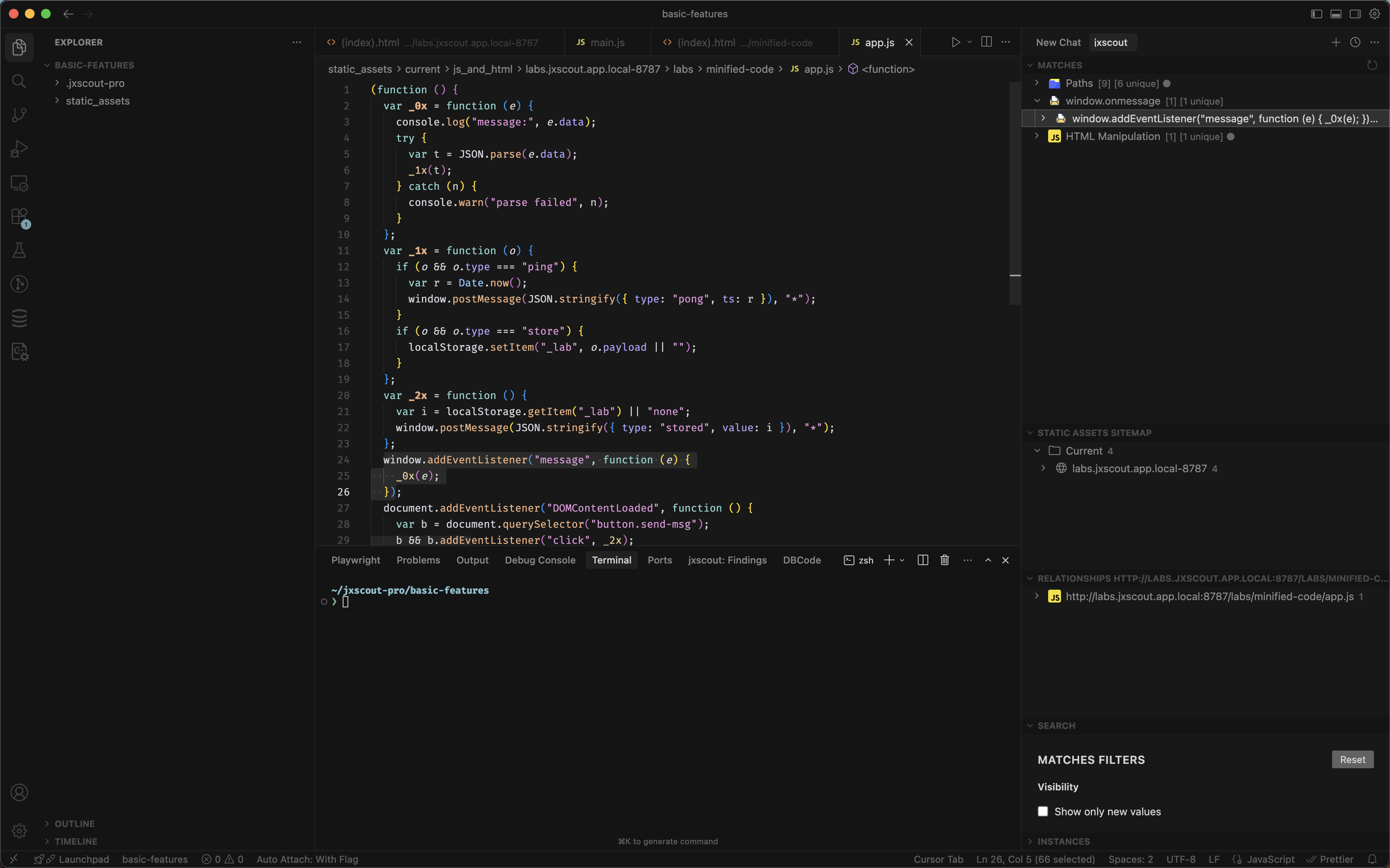
Discovery of lazy-loaded JS files
One of the main features of jxscout is the automated discovery of lazy-loaded JS files. Modern applications usually contain a huge amount of JS. To make them more efficient, bundlers such as webpack and Vite split the original source code into different chunks that are only loaded by the browser under certain conditions. This is great for regular users, but for security researchers, not having access to these files means missing the full picture and often valuable information like new API endpoints.
jxscout automatically discovers lazy-loaded JS files for apps built with:
- Webpack
- Vite
- Next.js
Discovering lazy-loaded JS files is a top priority for jxscout, so if you find a bundler that isn't supported, please reach out!
To understand this functionality, I've built one lab for each of the supported bundlers:
- https://labs.jxscout.app/labs/webpack-chunk-discovery/
- https://labs.jxscout.app/labs/vite-chunk-discovery/
- https://labs.jxscout.app/labs/next-js-chunk-discovery/ — you need to adjust the scope of the
basic-featuresproject to complete this lab.
Feel free to try all of them, but let's focus on the Webpack lab for this tutorial.
Load https://labs.jxscout.app/labs/webpack-chunk-discovery/ in Chrome and open the Sources tab in DevTools.
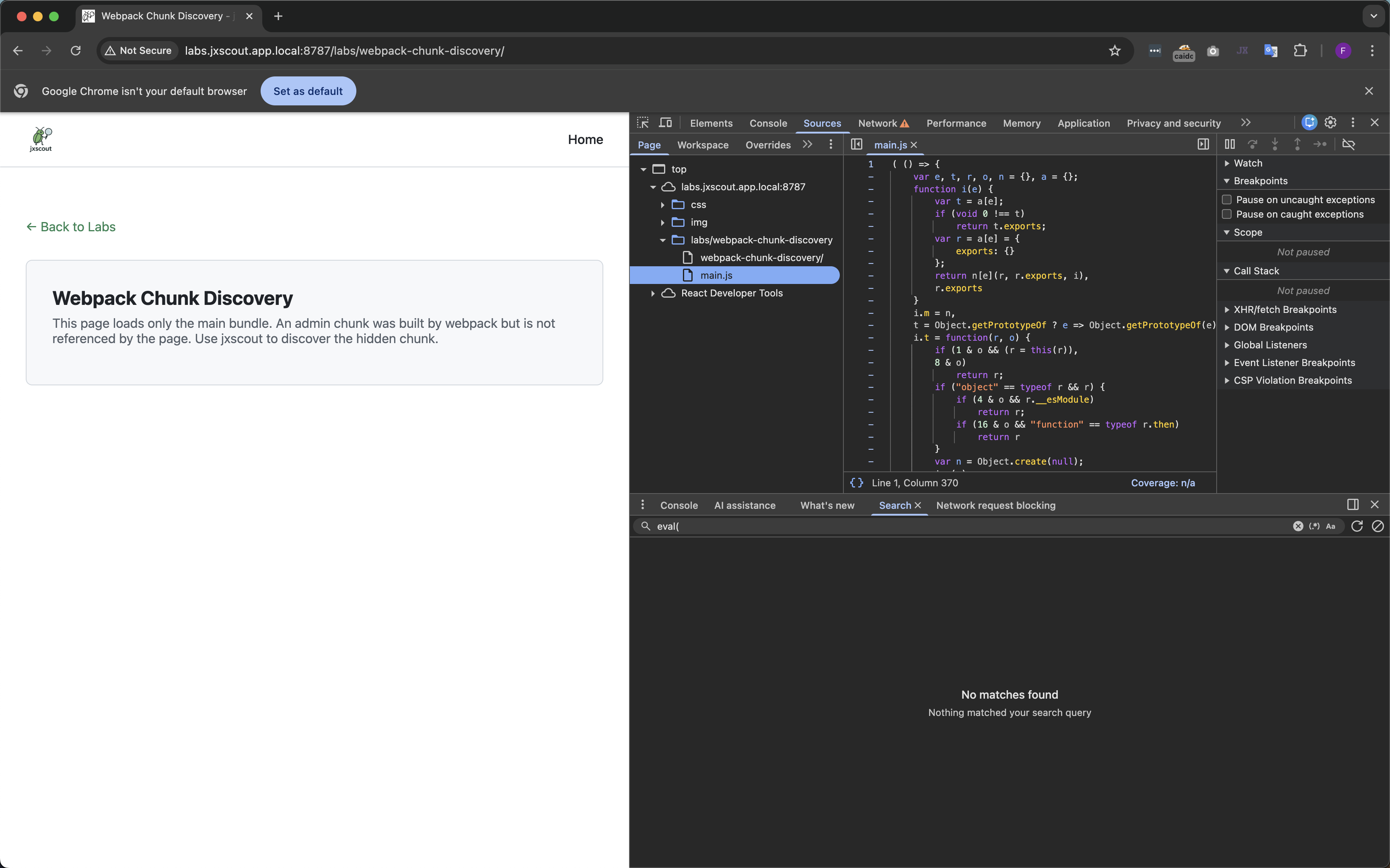
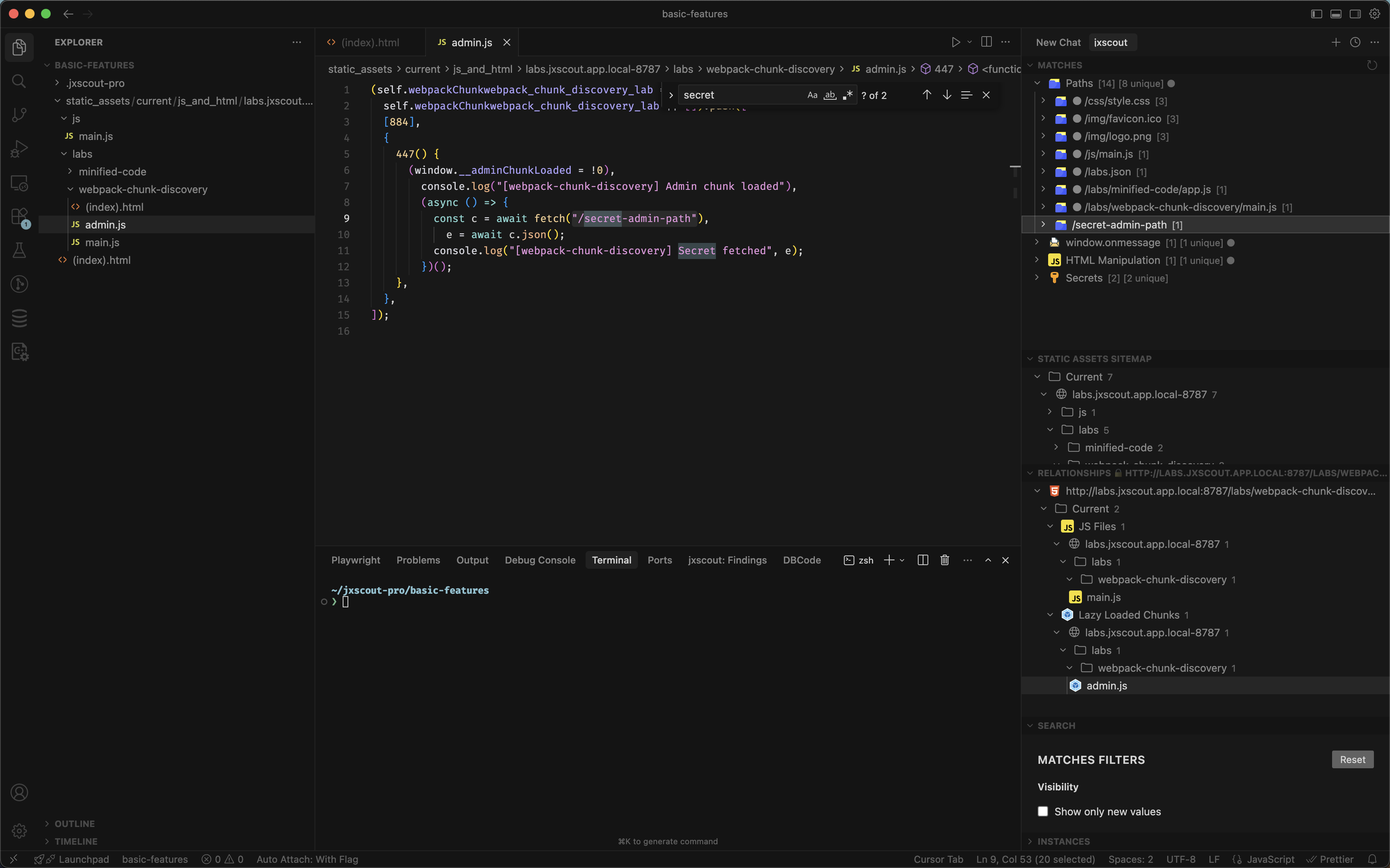
As you can see, for this page the only JS file shown in Chrome is main.js. However, this file references a lazy-loaded JS file—admin.js. Let's check what jxscout shows.
In the "Relationships" view, you can see a "Lazy Loaded Chunks" section where the admin.js file is listed. By analyzing main.js, jxscout found admin.js. In the "Matches" view you can also see a new path found in admin.js: /secret-admin-path.
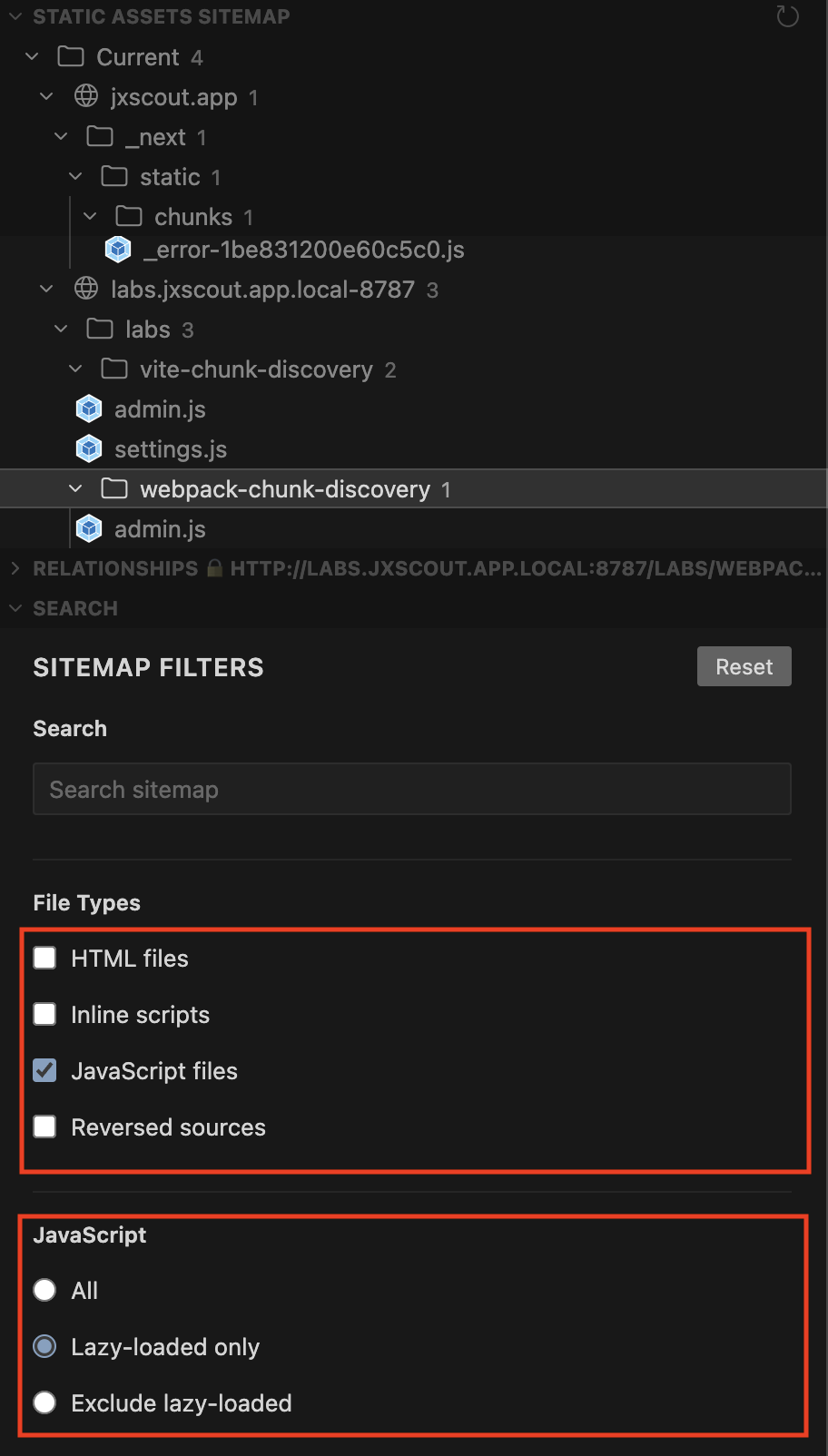
If you want to see all the chunks found by jxscout, use the filters in the "Search" view and open the "Static Assets Sitemap" view.
This is a powerful feature that lets you find scope with no effort that others often miss.
Discovery and reversal of source maps
Source maps map bundled JS code back to the original code written by developers. Sometimes these source maps end up on the live site, and they are a useful tool for security researchers because the original code is much easier to read than minified JS.
jxscout attempts to find source maps using several techniques, and after finding them it automatically reverses them and adds the reversed files to your project folder.
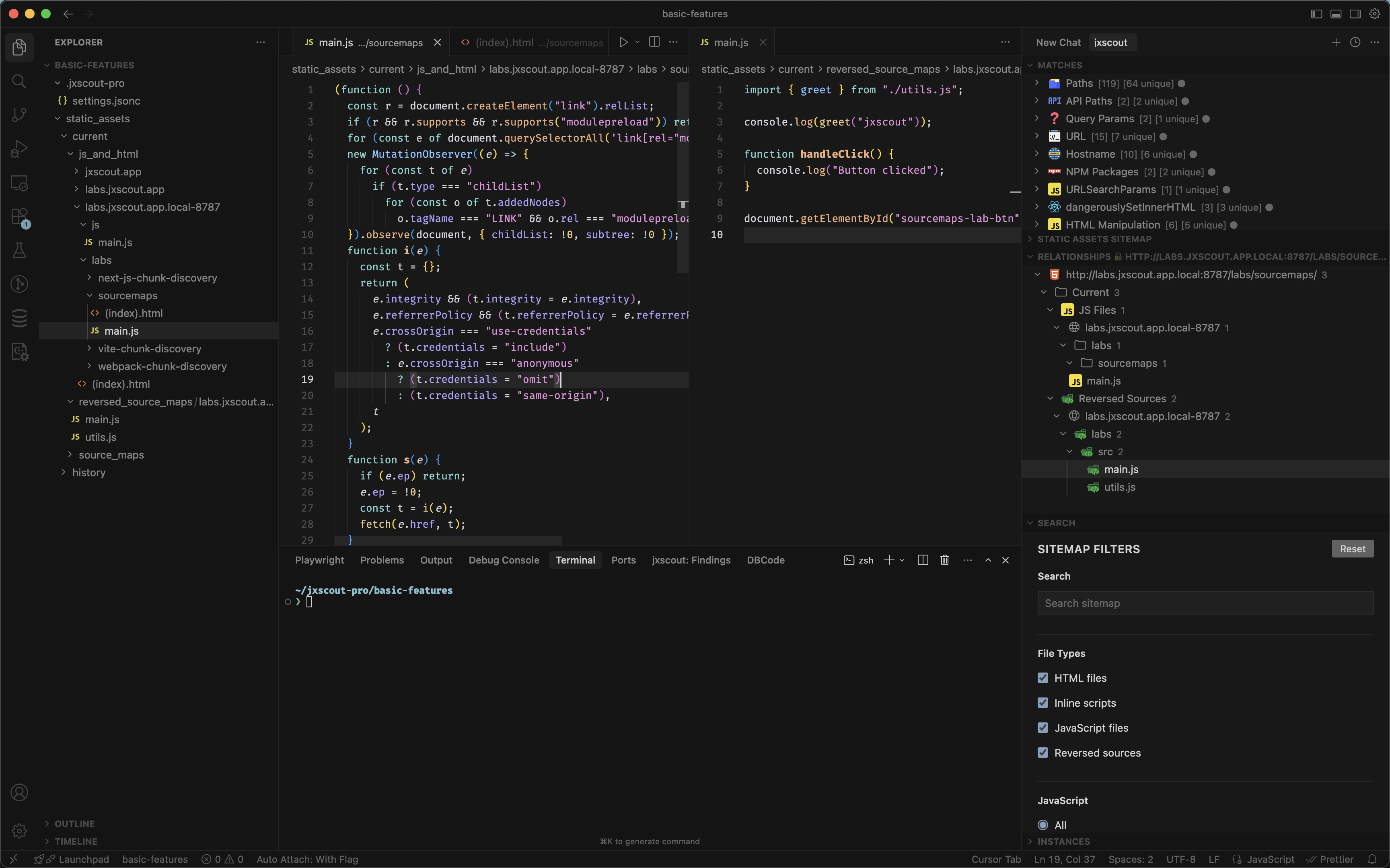
Load https://labs.jxscout.app/labs/sourcemaps/ to see this in action. After loading the page, you should see that jxscout downloaded a source map, reversed it, and added the output to the reversed_source_maps folder. Even in this small example, you can see how the original main.js is much less readable than the reversed main.js.
Conclusion
In this guide we explored the basic features of jxscout. These features are at the core of jxscout, but there is much more to explore. In the next tutorials we will cover other features and deep dive into some of the ones shown here.