Automation with hooks
One interesting feature of jxscout is the ability to run your own scripts based on different jxscout events. This allows you to create your own automations leveraging the work done by jxscout.
In this tutorial we will look into a few examples on how hooks could help you in your workflow.
Setting up the lab
To explore the hooks feature, create a new project hooks-tutorial and set the scope to *labs.jxscout.app*.
Hooks structure
To get a better picture of how hooks work, let's understand how we can set them up. Hooks are a project level configuration that looks like this:
// hooks are configured in your project's `settings.jsonc` file or in the
// shared project settings file.
{
  "$schema": "file://~/.jxscout-pro/project_settings.schema.json",
  // ...
  "hooks": {
    // `process_configuration` is an **optional** configuration for your hook processes.
    // For each event (e.g. `matches_created`), you can run multiple different "processes".
    // This allows you to parallelize work in case you want to run different scripts for the same
    // event.
    // A process is identified by its name and if you want to establish global concurrency values for it
    // you can use `process_configuration` like below.
    // In this case, we are ensuring that there's at most `10` notify processes running at the same time.
    "process_configuration": {
      "notify": {
        "concurrency": 10
      }
    },

    // The main part of hooks is setting process subscriptions to different events. The list of events available for hooks is:
    // - js_file_saved
    // - js_file_updated
    // - js_file_beautified
    // - html_file_saved
    // - html_file_updated
    // - html_file_beautified
    // - reversed_source_map_file_saved
    // - matches_created
    // - finding_created
    "matches_created": {
      // Here we are setting up a `check_relevant_matches` that will run on every `matches_created` event.
      // jxscout will ensure that only 5 instances of this script run at the same time.
      "check_relevant_matches": {
        // Scripts receive a relevant payload based on the event type.
        // We will explore this in a bit.
        "script": "bun run $JXSCOUT_PROJECT_DIR/scripts/analyze_matches.ts",
        // This is the `concurrency` for this process to run. This value overrides the global
        // `process_configuration` value for this particular event type.
        // By default the concurrency is set to `1`.
        "concurrency": 5
      },
      "notify": {
        "script": "notify 'matches created'"
      }
    },
    "js_file_saved": {
      "notify": {
        "script": "notify 'JS File Saved'"
      }
    }
  }
  // ...
}
Creating our first hooks
To start exploring hooks, let's start by creating some really barebones hooks, so we can understand how our scripts are called and how we can debug them.
Inside your project directory create a file named scripts/log_payload.sh:
#!/usr/bin/env bash
set -e
event_name="$1"
logfile="${JXSCOUT_PROJECT_DIR}/${event_name}.log"
{ cat; echo; } >> "$logfile"
Run chmod +x scripts/log_payload.sh on the file so jxscout can execute it.
Then update your project settings file inside your project's folder (.jxscout-pro/settings.jsonc) to create a process subscription to each individual event type:
{
  // ...
  "hooks": {
    "js_file_saved": {
      "js_file_saved_process_hook": {
        "script": "$JXSCOUT_PROJECT_DIR/scripts/log_payload.sh js_file_saved"
      }
    },
    "js_file_beautified": {
      "js_file_beautified_process_hook": {
        "script": "$JXSCOUT_PROJECT_DIR/scripts/log_payload.sh js_file_beautified"
      }
    },
    "html_file_saved": {
      "html_file_saved_process_hook": {
        "script": "$JXSCOUT_PROJECT_DIR/scripts/log_payload.sh html_file_saved"
      }
    },
    "html_file_beautified": {
      "html_file_beautified_process_hook": {
        "script": "$JXSCOUT_PROJECT_DIR/scripts/log_payload.sh html_file_beautified"
      }
    },
    "reversed_source_map_file_saved": {
      "reversed_source_map_file_saved_process_hook": {
        "script": "$JXSCOUT_PROJECT_DIR/scripts/log_payload.sh reversed_source_map_file_saved"
      }
    },
    "matches_created": {
      "matches_created_process_hook": {
        "script": "$JXSCOUT_PROJECT_DIR/scripts/log_payload.sh matches_created"
      }
    }
  }
}
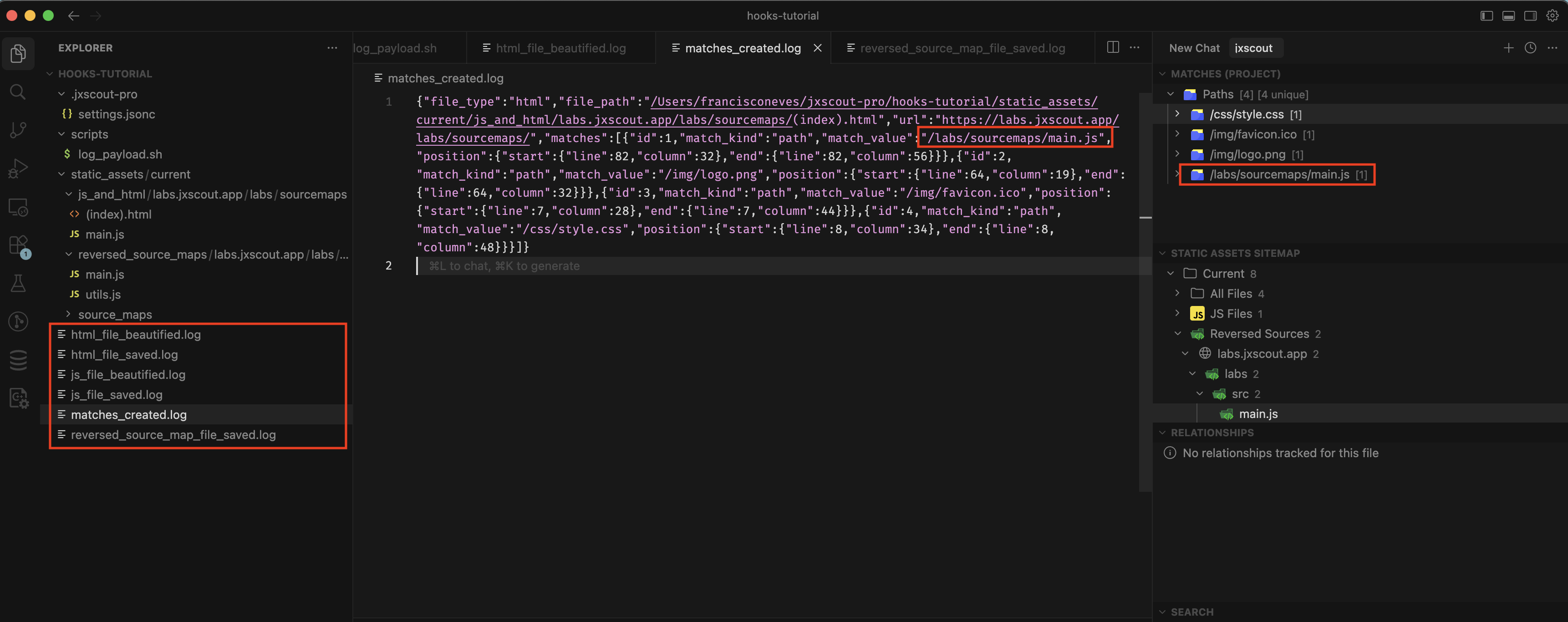
After saving, visit this lab https://labs.jxscout.app/labs/sourcemaps/ on your browser. If everything was set up correctly then you should have a file per event with the payloads that jxscout sends as stdin to your scripts.
Debugging errors and retrying
When you are developing hooks you will probably be writing your own scripts, so it's good to have some kind of debug/retry workflow so you can iterate quickly. jxscout allows you to do that by exposing your hook processes in the "Events" screen.
Let's learn about this by introducing a syntax error in one of our hooks:
{
  // ...
  "hooks": {
    "js_file_saved": {
      "js_file_saved_process_hook": {
        "script": "oops_this_command_doesnt_exist"
      }
    }
    // ...
  }
}
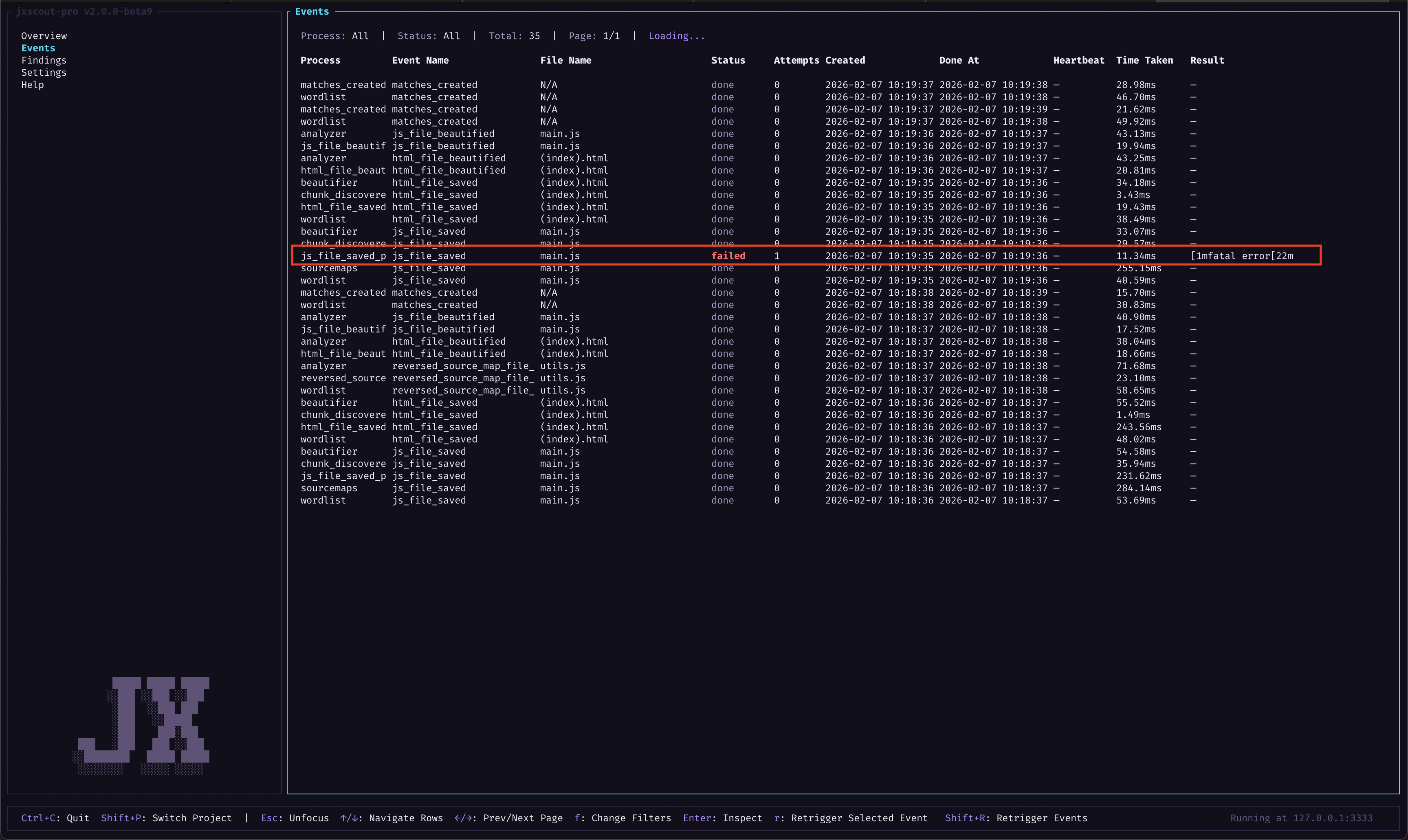
Let's now visit the homepage of labs to fetch new files https://labs.jxscout.app/ and simulate the error. In this case, there should have been a new entry added for the https://labs.jxscout.app/js/main.js file in our js_file_saved.log file, but since we have a syntax error the process will fail.
You can debug failures by going to the "Events" screen. In this case, since we have a small project you will quickly identify that there is a "failed" event.
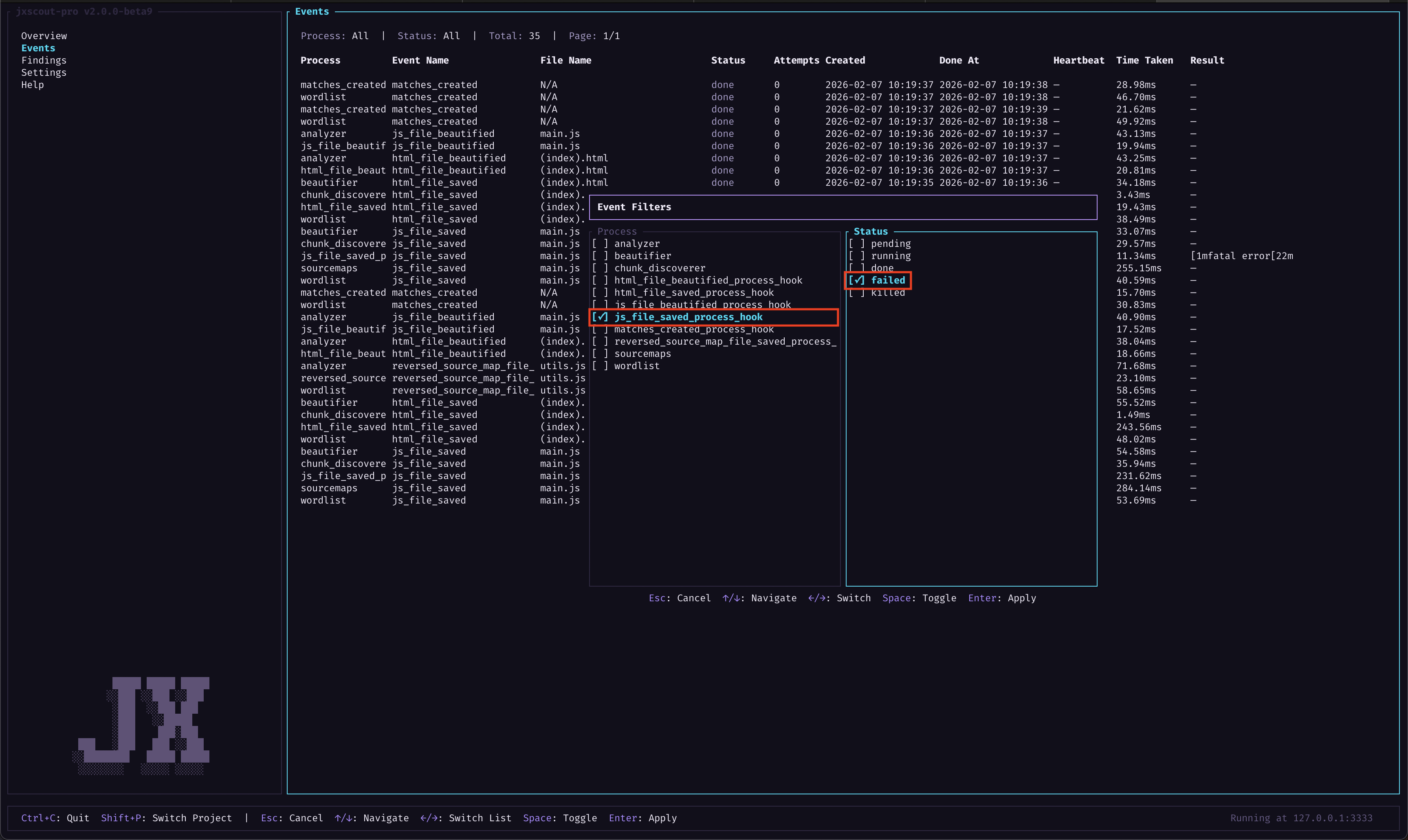
However, for bigger projects you might want to filter by process name and event status so you can more easily identify failed events and understand the root cause. To do that, press f while this view is focused to bring up the filters popup.
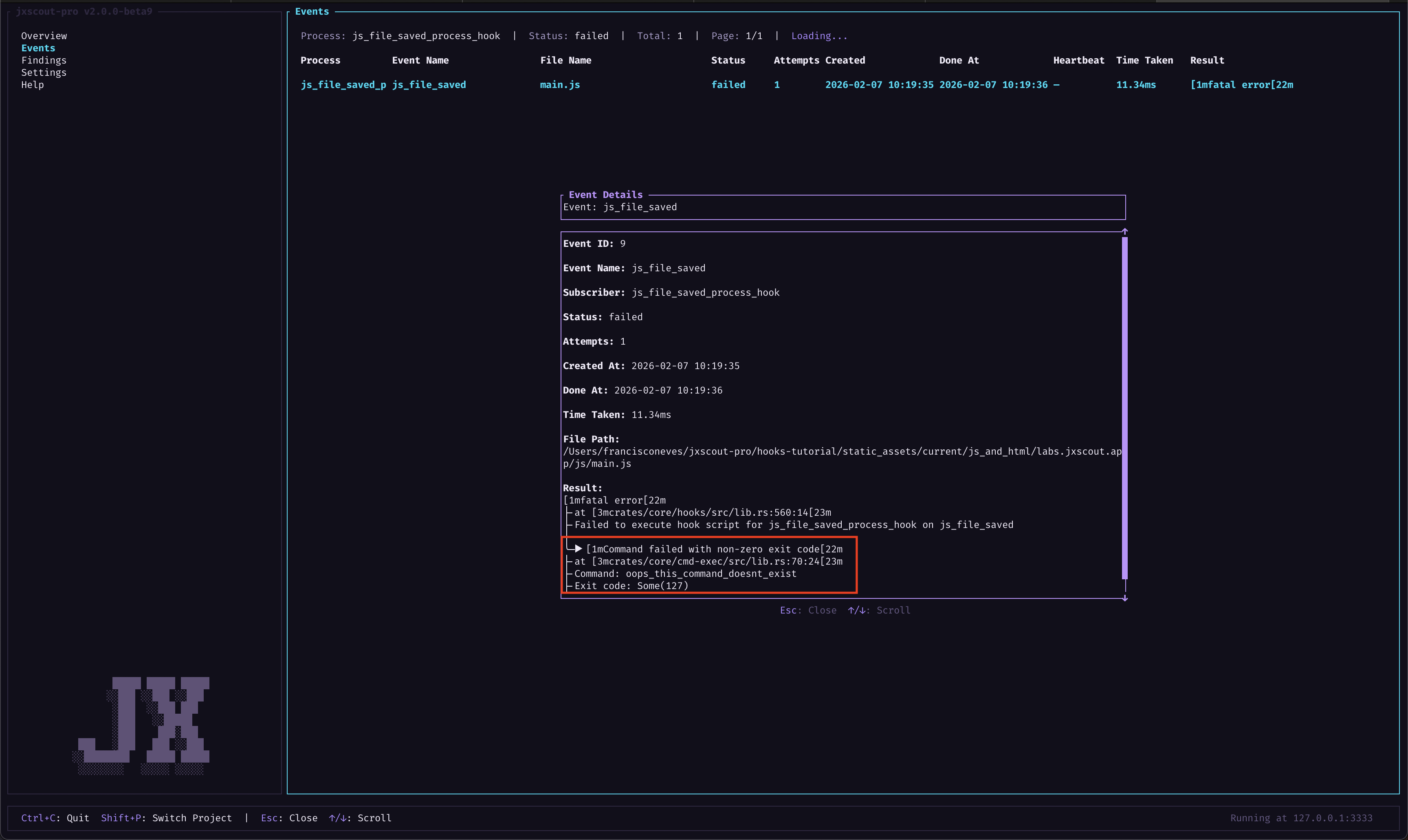
After you apply the filter you can use your arrow keys to navigate to the failed row and press Enter to bring up a popup describing why this event failed.
Now that you learned how to identify failed events, let's fix our hook again and learn how to retry the event. First change the settings again:
{
  // ...
  "hooks": {
    "js_file_saved": {
      "js_file_saved_process_hook": {
        "script": "$JXSCOUT_PROJECT_DIR/scripts/log_payload.sh js_file_saved"
      }
    }
    // ...
  }
}
Retriggering individual events
You can retrigger individual events by navigating to them on the "Events" view and pressing r with that row selected. This is a useful mechanism for you to test out script changes too, because you will effectively rerun your script this way.
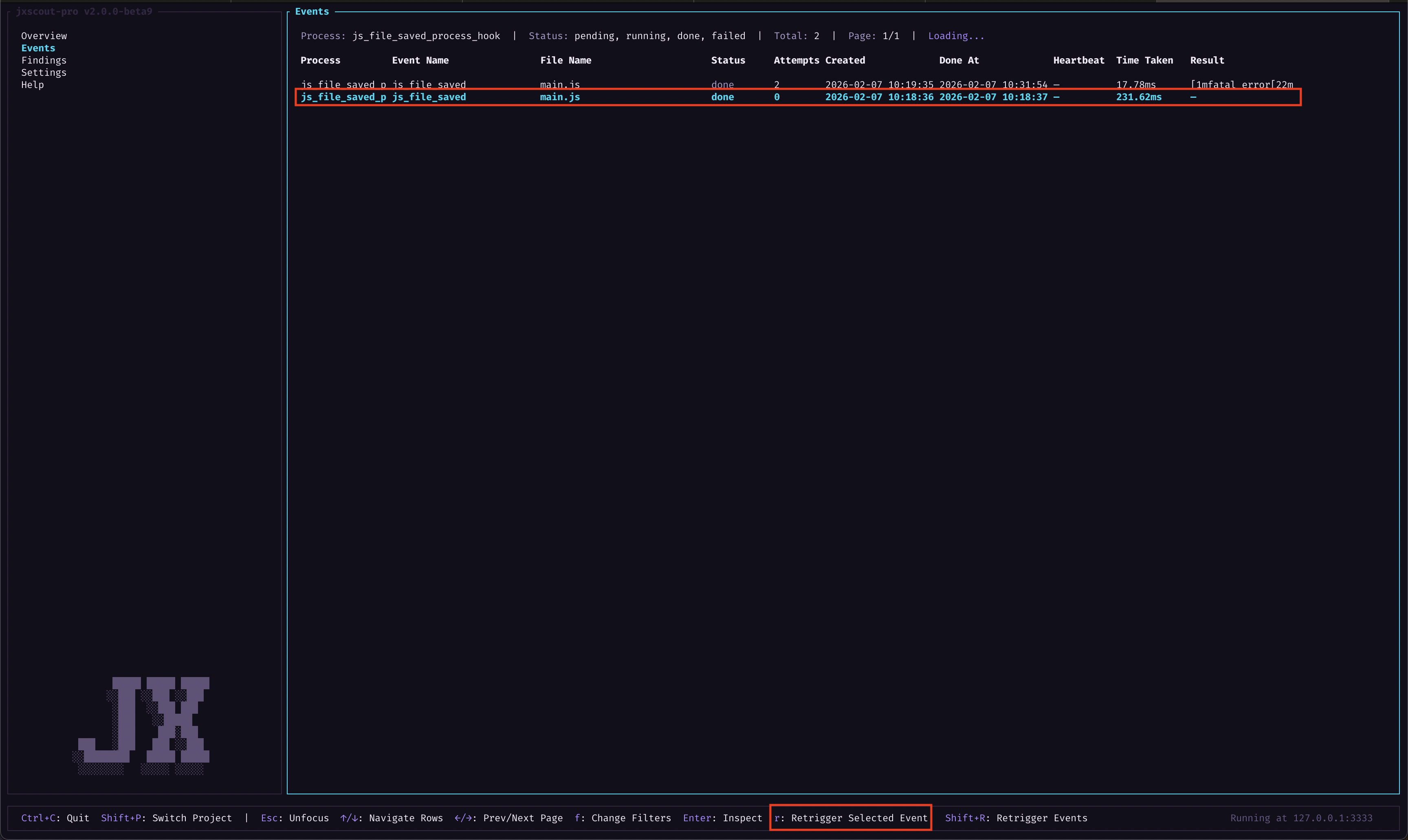
Try to rerun the failed event this way and check that it is now working.
Retriggering multiple events
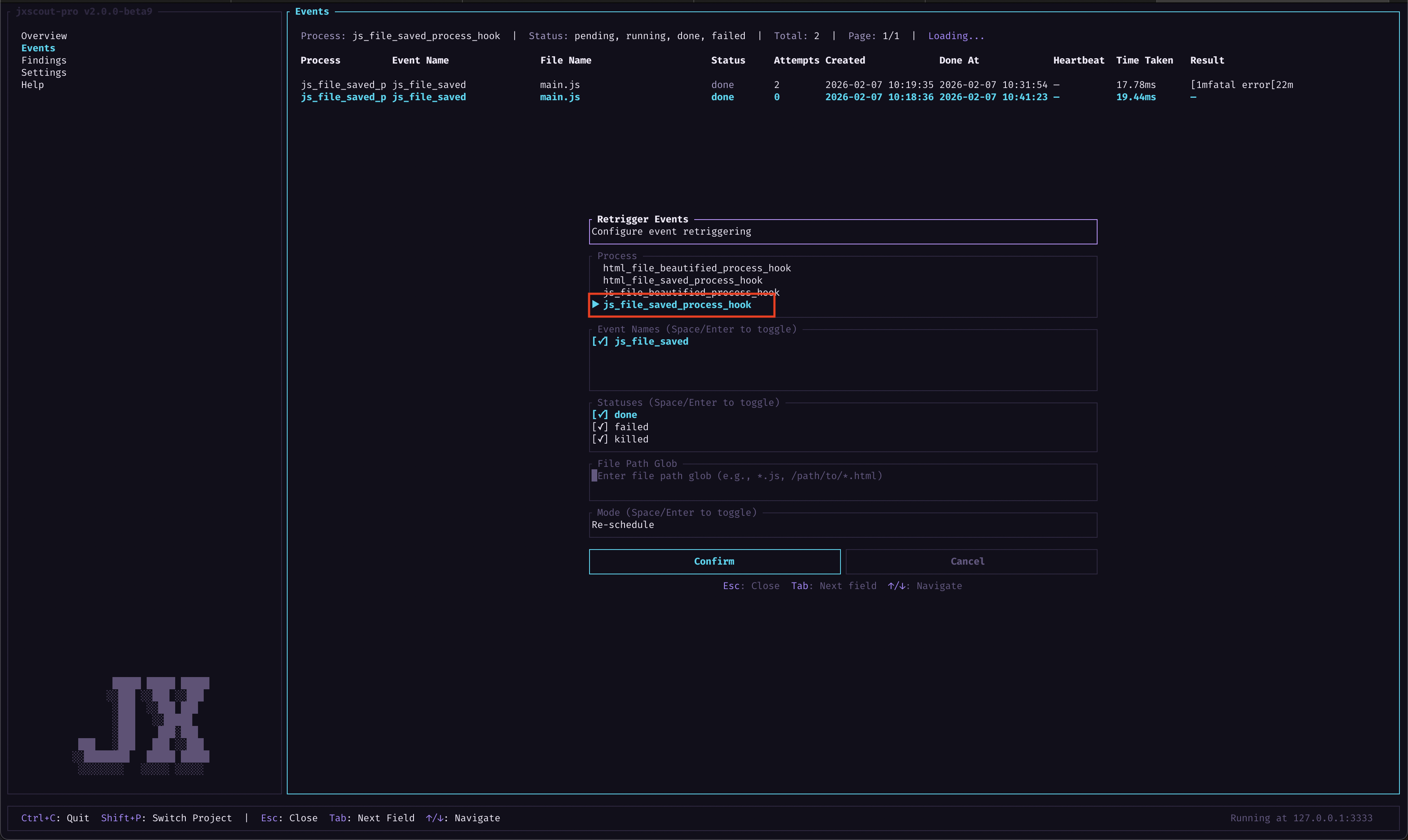
Rerunning individual events can be useful for debugging, but after you fix an error you might want to rerun all failed events again. To do that, you can use the retrigger events popup by pressing Shift+R. This will rerun every event for a given process, and you have some options to filter by event state and file paths.
AI automation example
As an exercise let's build a simple system: we will use an agent that automatically detects onmessage listeners without an origin check and notifies us.
This is how the system will work:
- Create a script that hooks into
matches_created. - In case any of the matches are
window_onmessage, we will ask an AI agent to analyze it. - The AI agent will decide if the
window_onmessagehas an origin check or not.
As we've seen in the section where we created a log hook, the stdin input on the matches_created has the following format:
{
  // the file type, `reversed_source`s are also js files but this representation
  // is used by jxscout to track files
  "file_type": "html|js|reversed_source",
  // the absolute file path
  "file_path": "/absolute/path/to/file",
  // list of matches found on this file
  "matches": [
    // ...
    {
      // the match kind
      "match_kind": "<match_kind>",
      // the matched value
      "match_value": "<match_value>",
      // the position where this match was found in the file
      "position": {
        "start": { "line": 9, "column": 9 },
        "end": { "line": 13, "column": 10 }
      }
    }
    // ...
  ]
}
Let's create a TypeScript script that is able to parse this format from stdin and, in case there's a window_onmessage match, ask an AI agent to check if it has an origin check or not.
interface Position {
  line: number;
  column: number;
}

interface Match {
  match_kind: string;
  match_value: string;
  position: {
    start: Position;
    end: Position;
  };
}

interface Input {
  file_type: "html" | "js" | "reversed_source";
  file_path: string;
  matches: Match[];
}

const g = globalThis as unknown as {
  process: { stdin: AsyncIterable<Uint8Array>; exit(code: number): never };
  Buffer: { concat(list: Uint8Array[]): { toString(): string } };
};

async function main() {
  const chunks: Uint8Array[] = [];
  for await (const chunk of g.process.stdin) chunks.push(chunk);
  const raw = g.Buffer.concat(chunks).toString();
  const data: Input = JSON.parse(raw);

  const windowOnMessage = data.matches.filter(
    (m) => m.match_kind === "window_onmessage"
  );

  for (const match of windowOnMessage) {
    console.log(
      "Found onmessage!",
      JSON.stringify({ file_path: data.file_path, match })
    );
  }
}

main().catch((err) => {
  console.error(err);
  g.process.exit(1);
});
This script will log a message for each window_onmessage found. Let's update our hooks configuration to execute this script and log the output to a file:
{
  // ...
  "hooks": {
    "matches_created": {
      "onmessage_ai_check": {
        "script": "bun run $JXSCOUT_PROJECT_DIR/scripts/ai_onmessage.ts  2>&1 | tee $JXSCOUT_PROJECT_DIR/ai_onmessage.log"
      }
    }
  }
}
Now load the following lab which we will use as a playground: https://labs.jxscout.app/labs/onmessage-origin-hooks/. If everything looks good then the window_onmessage matches should have been logged to a file:
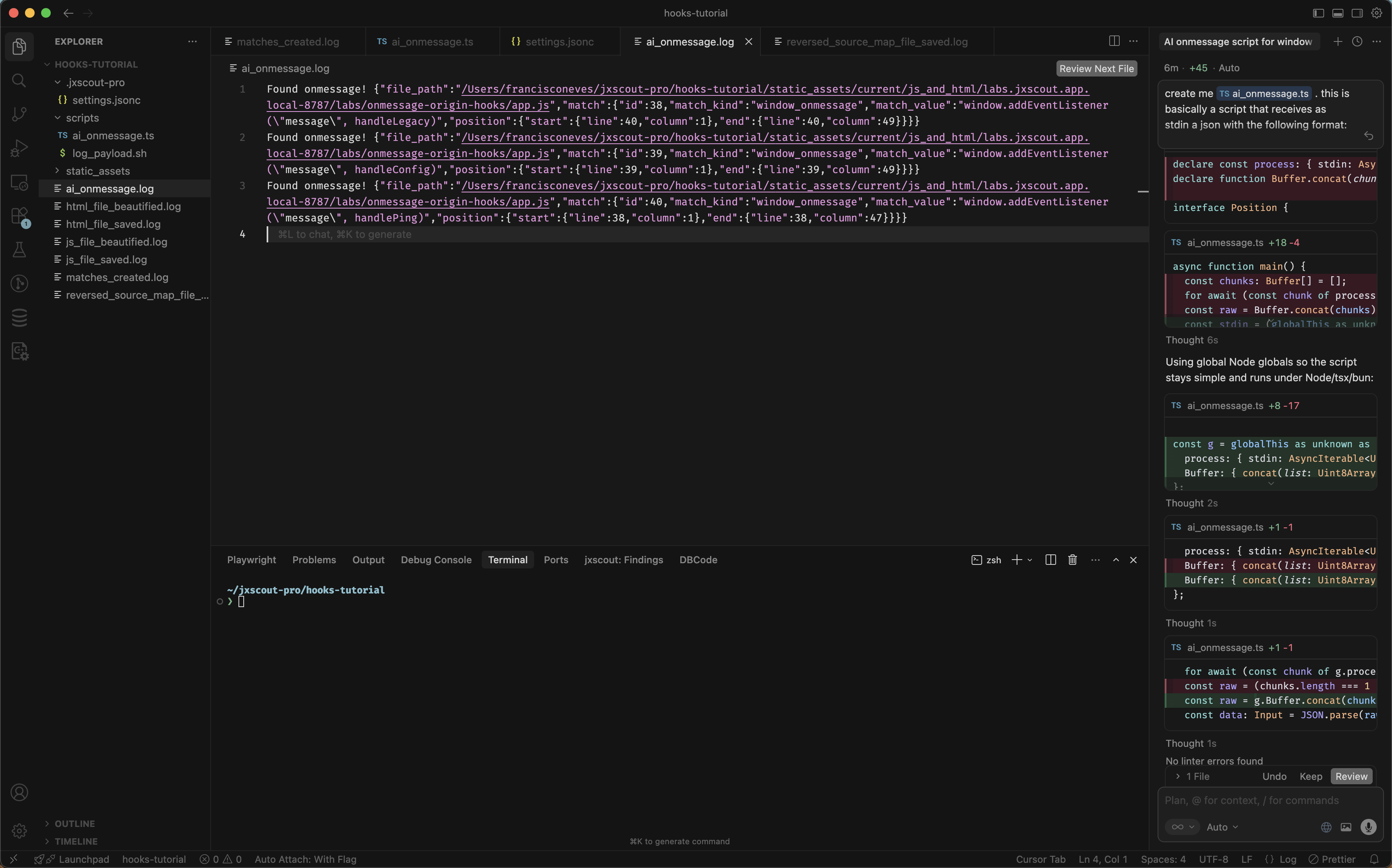
Now, we will use gemini cli to check the window onmessage events and understand if any of them are missing an origin check. Go ahead and install it on your system if you don't have it already.
Now let's update our script to log to a file in case there's a "vulnerable" window.onmessage listener:
declare const Bun: {
  spawn(
    cmd: string[],
    opts?: {
      stdio?: ["inherit" | "pipe", "inherit" | "pipe", "inherit" | "pipe"];
    }
  ): { exited: Promise<number> };
};

interface Position {
  line: number;
  column: number;
}

interface Match {
  match_kind: string;
  match_value: string;
  position: {
    start: Position;
    end: Position;
  };
}

interface Input {
  file_type: "html" | "js" | "reversed_source";
  file_path: string;
  matches: Match[];
}

const g = globalThis as unknown as {
  process: {
    stdin: AsyncIterable<Uint8Array>;
    exit(code: number): never;
    env: Record<string, string | undefined>;
  };
  Buffer: { concat(list: Uint8Array[]): { toString(): string } };
};

async function runGeminiCheck(projectDir: string, match: Match): Promise<void> {
  const prompt = `
    Analyze this code snippet: ${JSON.stringify(match)}.
    Does it contain a 'message' event listener without an origin check?
    If YES, output only the word 'VULNERABLE'.
    If NO, output nothing.
  `;

  // Capture the output instead of inheriting stdio
  const proc = Bun.spawn([
    "gemini",
    "--include-directories",
    projectDir,
    "-p",
    prompt,
  ]);

  const text = await new Response(proc.stdout).text();
  const exitCode = await proc.exited;

  if (exitCode === 0 && text.trim().includes("VULNERABLE")) {
    const logPath = `${projectDir}/missing_origin_check_found.log`;
    const entry = `Finding: Missing origin check in ${JSON.stringify(match)}\n`;
    await Bun.write(logPath, entry, { append: true });
  }
}

async function main() {
  const chunks: Uint8Array[] = [];
  for await (const chunk of g.process.stdin) chunks.push(chunk);
  const raw = g.Buffer.concat(chunks).toString();
  const data: Input = JSON.parse(raw);

  const projectDir = g.process.env.JXSCOUT_PROJECT_DIR ?? "";
  if (!projectDir) {
    throw new Error("JXSCOUT_PROJECT_DIR is not set");
  }

  const windowOnMessage = data.matches.filter(
    (m) => m.match_kind === "window_onmessage"
  );

  for (const match of windowOnMessage) {
    await runGeminiCheck(projectDir, match);
  }
}

main().catch((err) => {
  console.error(err);
  g.process.exit(1);
});
Go to the "Events" view and retrigger the matches_created event for the onmessage_ai_check process that you created and let's see what our script outputs. If everything went well you will see a missing_origin_check_found.log file in your project, with the match corresponding to the onmessage listener missing an origin check.
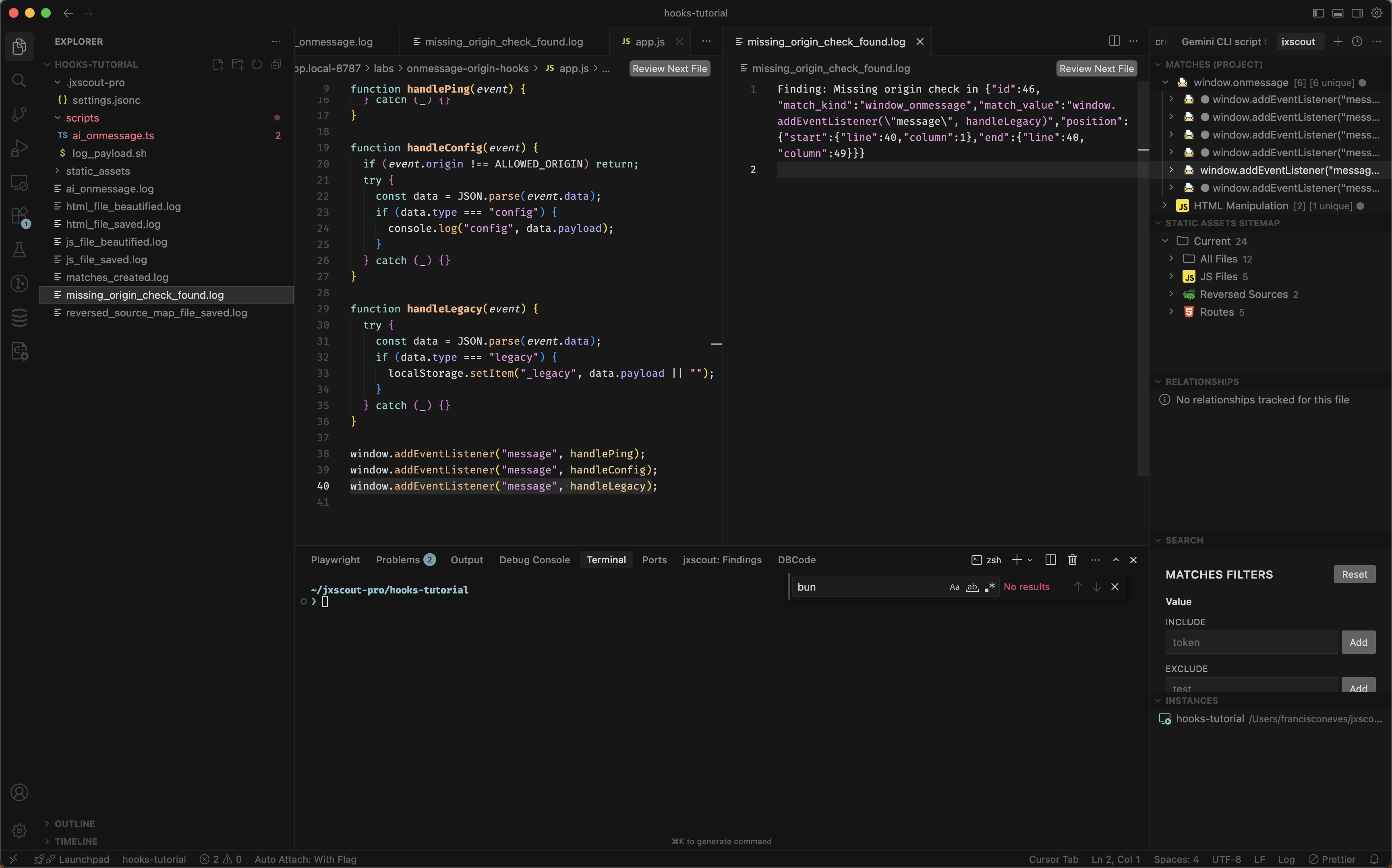
Nice! The AI agent successfully detected that there was a missing origin check. From here we could extend our script to also notify us on Discord or perform a more robust check to see if a window_onmessage match is relevant or not.